How to Improve Your Google PageSpeed Score: The Fixes That Actually Matter
A plain-English walkthrough of what PageSpeed Insights flags on small business websites, in the order worth fixing them: images, scripts, unused code, caching, hosting, layout shift, and fonts. What each one means and whether you can do it yourself.
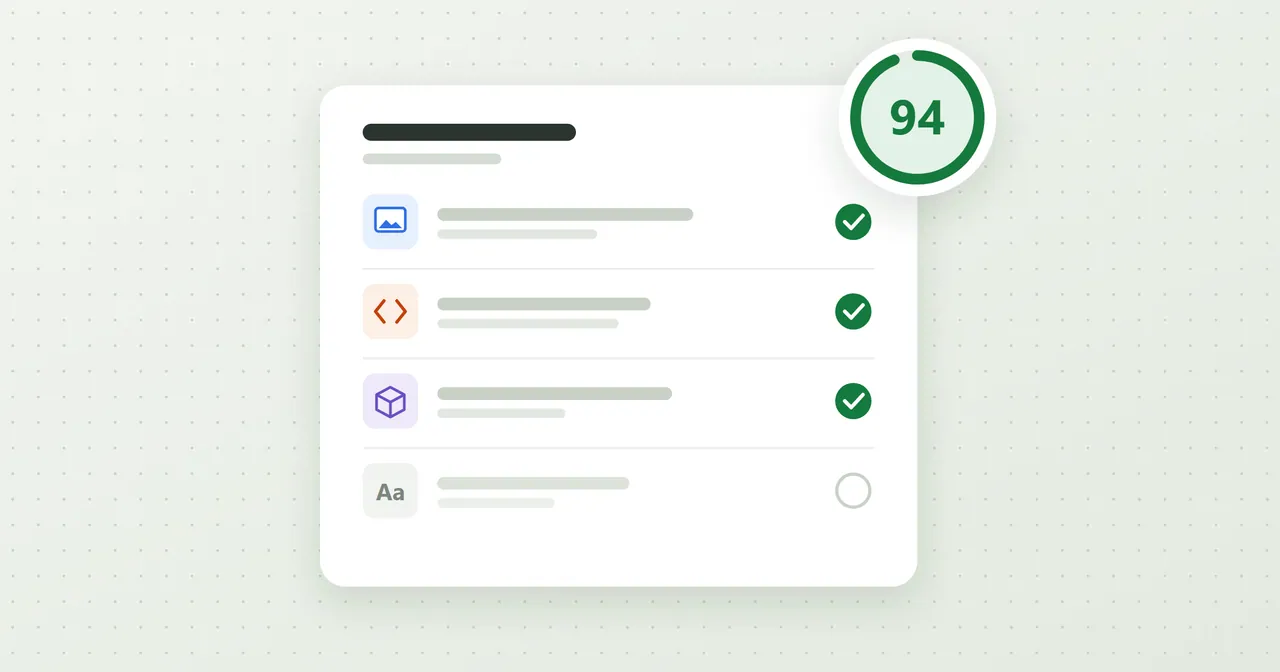
You ran your site through PageSpeed Insights and got a number you didn't like, followed by a long list of recommendations written for developers. "Eliminate render-blocking resources." "Reduce unused JavaScript." It's hard to know which of those matter and which you can ignore.
This is the order I'd work through them for a small business site, with what each one means, what to do, and whether you can do it yourself. If you haven't looked at your own report yet, you can run your site through our free website audit and get the same kind of list translated into plain English.
One note before we start. The score that counts most is the mobile Performance score, because that's where most of your visitors are and where small sites usually do worst. Make sure you're looking at the Mobile tab.
1. Properly size and compress your images
What it means. Your pages are downloading images that are bigger than they need to be, either in dimensions or in file size. The report calls this "Properly size images," "Efficiently encode images," or "Serve images in next-gen formats."
What to do. Resize each photo to about the size it's displayed, and save it as WebP or a well-compressed JPEG. A full-width banner rarely needs to be wider than about 2000 pixels, and a photo in a small card needs far less. Mark images below the fold, meaning not visible until you scroll, to load lazily.
Can you do it yourself? Mostly yes. Squoosh is a free browser tool, and WordPress has compression plugins that can handle your existing library. If your site is custom-built, ask your developer to add responsive image sizes.
This is where I'd start, because it's usually the biggest gain for the least effort.
2. Remove or delay render-blocking scripts
What it means. Some code has to load before the browser is allowed to show anything. If that code is slow, your visitor sits on a blank screen. Chat widgets, tracking tags, and style files loaded in the wrong order are the usual offenders.
What to do. Delete anything you don't use. For tools you do need, load them after the page has appeared, using the "defer" or "async" settings, or only when someone interacts with the page.
Can you do it yourself? Removing things, yes. Changing how they load generally needs a developer, though some WordPress performance plugins have a switch for it. Check that your forms and menus still work after you flip it.
3. Reduce unused JavaScript and CSS
What it means. The page is loading code for features it never uses. This is typical of page builders and themes, which ship everything just in case.
What to do. Remove plugins you don't need, turn off unused modules, and cut tracking tools you've stopped checking. A developer can go further by splitting code so each page only gets what it uses.
Can you do it yourself? The cleanup, partly. If the weight comes from the builder itself, the real fix is a leaner build, which is a developer job. Sometimes the report is telling you the foundation is heavy, and settings won't change that much.
4. Turn on caching and compression
What it means. "Serve static assets with an efficient cache policy" means returning visitors have to download things again that their browser could have kept. Text compression means files get sent smaller.
What to do. Set caching headers so images, styles, and scripts are stored for a long time, and enable Gzip or Brotli compression on the server.
Can you do it yourself? On WordPress, a caching plugin does most of it. On other setups it's a server or CDN setting, and a developer can switch it on in a few minutes. Many hosts have it as a checkbox, so it's worth asking them.
5. Check your hosting and server response time
What it means. The report says "Reduce initial server response time," or shows a long wait before anything arrives. The server is slow to answer, and no amount of image work will cover that up.
What to do. Look at your host. Cheap shared plans are crowded, and sites on them can be slow at busy hours. A better plan, a host with servers closer to your customers, or a CDN in front of the site all help. A static site served from a CDN is usually the fastest option, because there's no database to wait on. This site is built that way.
Can you do it yourself? You can choose a new host. Moving a live site without breaking email, forms, or search ranking is where people get burned, so I'd get help with the migration.
6. Fix layout shift
What it means. Content jumps around while the page loads, so someone goes to tap a button and hits something else. PageSpeed measures it as Cumulative Layout Shift. The usual cause is images with no set width and height, ads or banners that appear late, or a font swapping in.
What to do. Give every image and embed a fixed width and height so the browser can save the space before it arrives. Reserve room for banners and cookie notices instead of pushing the page down.
Can you do it yourself? Often yes, if your editor lets you set image sizes. Anything in the theme or the code is a developer fix.
7. Trim your fonts
What it means. Custom fonts are extra files that have to arrive before text looks right. Five weights across two families add up.
What to do. Use one or two families and only the weights you actually use. Serve them from your own site rather than a third party where you can, and set them to show a fallback font right away while the real one loads.
Can you do it yourself? Choosing fewer fonts, yes. The loading settings need a developer or a theme option.
Don't chase a perfect 100
A few honest points before you spend a weekend on this.
Scores move between runs. Run the same page three times and you may see three different numbers a few points apart, because Lighthouse is a lab test and conditions shift. Judge the trend and the specific recommendations, not one run. I covered this more in why your website's Lighthouse score costs you customers.
Getting from 45 to 85 is a real change that visitors feel. Getting from 92 to 100 usually isn't, and it can mean stripping out things your business actually needs, like a booking tool or a map. Google describes 90 and above as good, and once you're there your time is better spent on the content of the site.
If you're still not sure where the slowness is coming from, why is my website slow has a few simple checks you can do on your own phone to narrow it down.
Where to start
Pick the top two or three items from your report, fix those, and rerun it. When you want the list for your own page, you can see your PageSpeed scores and top fixes in about a minute. If the fixes turn out to be deeper than settings can reach, we can help through website development.
Nathan